


ASA2 Tracking 1.0.0 is now available as a free add-on plugin. It records which products, templates, and link elements your visitors click on — using a built-in analytics dashboard, Matomo, or Google Analytics 4.
What ASA2 Tracking Offers
- Built-in Analytics: Self-hosted dashboard with click trends, top products, and device stats — no external services required
- Three Providers: Built-in tracking, Matomo, and Google Analytics 4 — use one or combine all three
- Zero Configuration: Tracking attributes are injected automatically into all managed templates
- Privacy-Friendly: The built-in provider uses no cookies, no fingerprinting, and stores hashed IPs with daily rotating salts
Why Click Tracking Matters
ASA2 displays affiliate products on your site using templates with buttons, titles, and images. Until now, there was no way to know which of these elements visitors actually click, which products generate the most interest, or which template designs perform best.
ASA2 Tracking fills this gap. It captures every affiliate click with product, template, and element details and presents the data in a visual dashboard inside WordPress — or forwards the events to Matomo and Google Analytics 4 for deeper analysis.
Built-in Analytics Dashboard
The built-in provider stores all click data in your WordPress database. No external accounts, no cookie consent banners, no data leaving your server.
The dashboard page shows four key metrics at a glance: total clicks (with trend percentage), unique products clicked, the top-performing template, and average clicks per day. Below the stats, an interactive line chart visualizes the click trend over the selected date range.
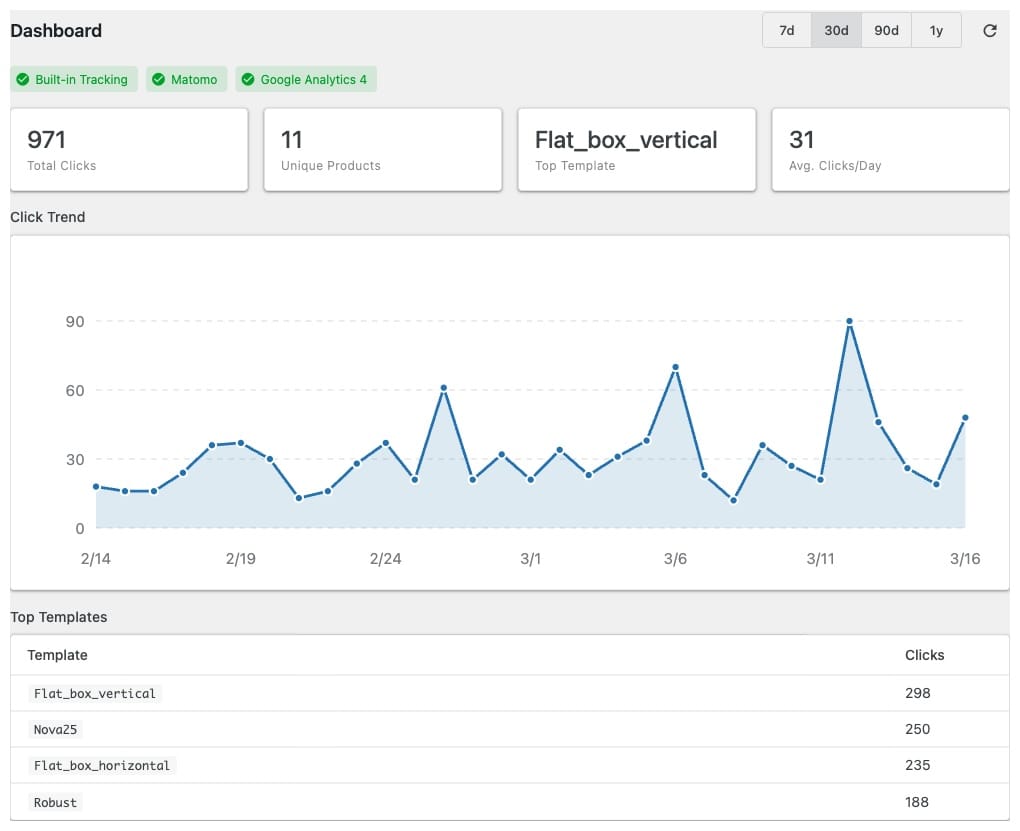
The dashboard provides an overview of click activity for any date range.
Analytics Page
The analytics page offers deeper analysis. A sortable table lists the most-clicked products with their ASIN or Product ID, the templates they appeared in, and total click counts. A template filter narrows the view to a specific template design.
Below the table, four charts break down the data: a horizontal bar chart for template performance, and donut charts for click elements (button vs. title vs. image), device types (desktop, mobile, tablet), and browser distribution.
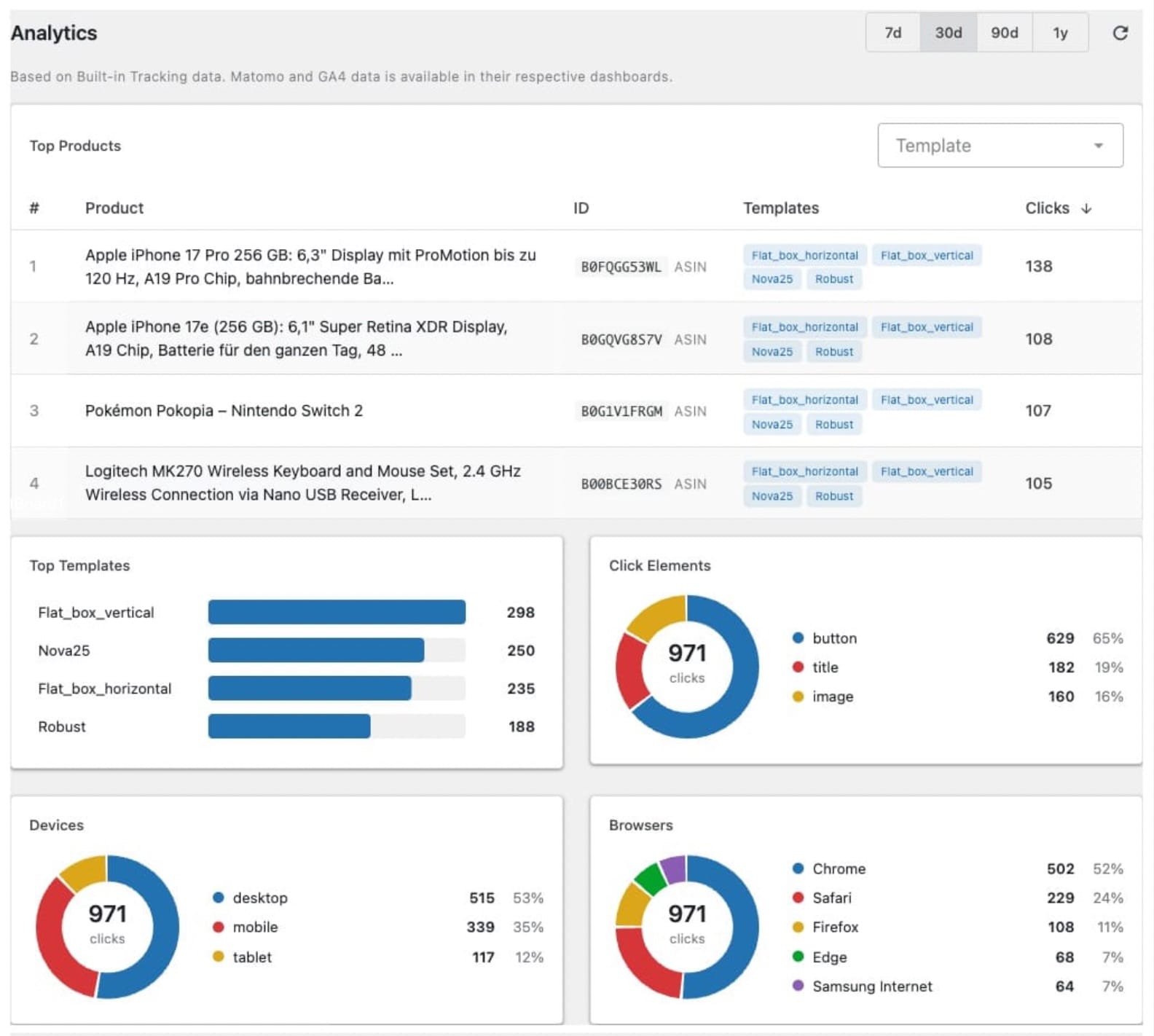
Detailed analytics show which products, templates, and elements drive the most clicks.
Data Retention and Aggregation
Raw click data is aggregated daily via WP-Cron. Aggregated data is kept permanently, while raw clicks can be purged automatically after a configurable retention period (30 days to unlimited). A manual aggregation trigger is available in Settings for immediate data processing.
Three Providers
ASA2 Tracking supports three tracking providers. Each can be enabled and configured independently.
Built-in Tracking
All data stays in your WordPress database. The built-in provider captures click events server-side, detects device types and browsers from the User-Agent header (no cookies), and aggregates the data daily for the dashboard and analytics views.
Matomo
ASA2 Tracking sends click events to Matomo via client-side event tracking. If the “Matomo for WordPress” plugin is installed, the connection is detected automatically — no configuration needed. For self-hosted Matomo instances, enter the tracker URL and site ID manually. A cookieless tracking option is available for GDPR compliance. Events appear under Behaviour → Events in Matomo.
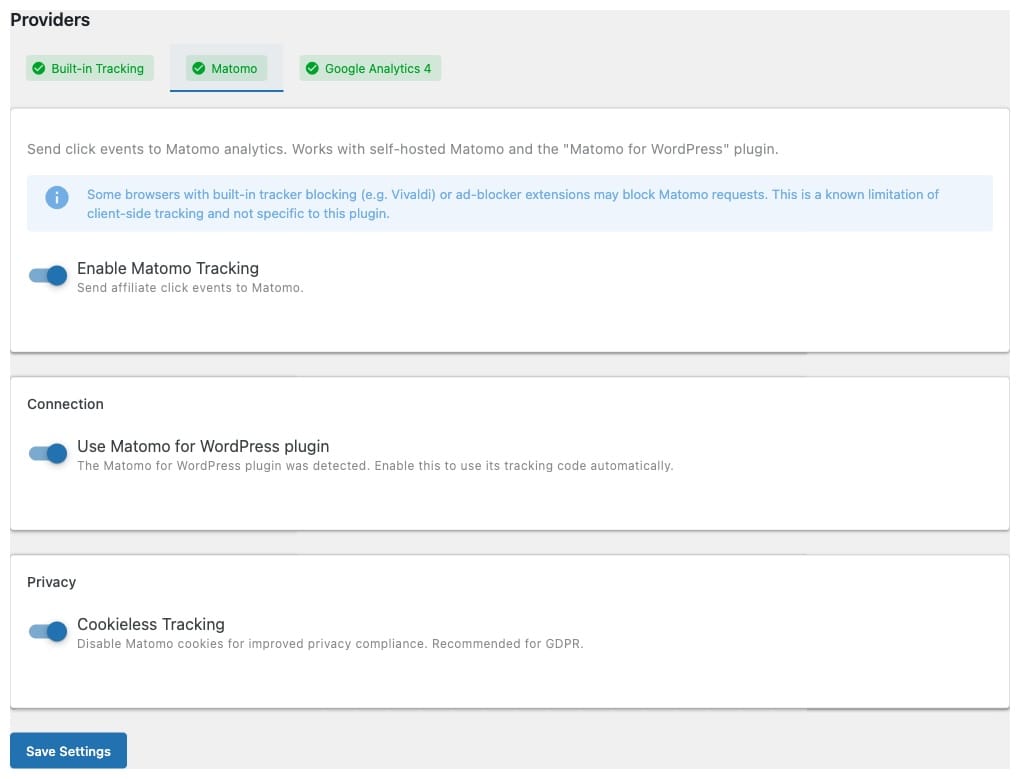
The Matomo provider auto-detects the “Matomo for WordPress” plugin or accepts manual configuration.
Google Analytics 4
ASA2 Tracking sends click events to your GA4 property. If your theme or another plugin already loads the GA4 script, ASA2 Tracking uses it automatically. Otherwise, optional script injection is available. An inline setup guide in the provider settings explains how to create custom dimensions and Explore reports in GA4 to analyze your click data.
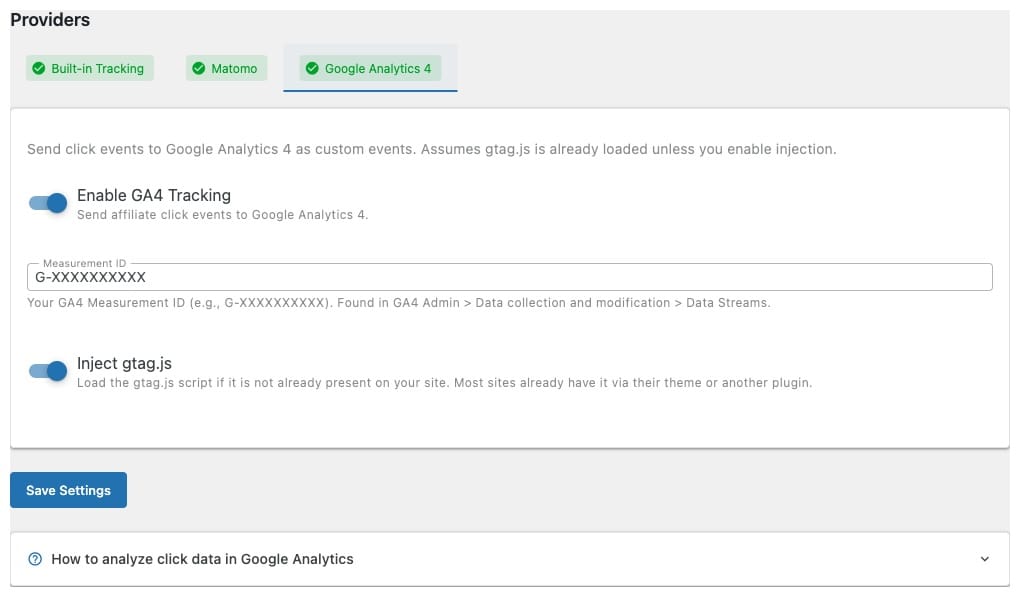
The GA4 provider includes an inline setup guide for custom dimensions and Explore reports.
Privacy by Design
The built-in provider is designed with privacy in mind. IP addresses are hashed using daily rotating salts, making it impossible to reconstruct original IPs after 24 hours. No cookies are set, and no browser fingerprinting is used. Device detection is limited to coarse-grained categories (desktop, mobile, tablet) derived from the User-Agent header.
Automatic Template Injection
ASA2 Tracking adds tracking attributes to all managed ASA2 templates automatically at render time. No template editing is required. Activate the plugin, enable a provider, and clicks are recorded immediately.
For custom templates, add data-linktype attributes to your link elements to enable tracking. The Template Checker tool verifies tracking compatibility across all your templates and shows exactly which attributes are missing.

The Template Checker verifies which templates are ready for click tracking.
Technical Details
- Script size: The frontend tracking script is approximately 1 KB. It uses
fetch()withkeepaliveto send click data without delaying page navigation. - Ad-blocker resistance: API paths, script filenames, and variable names use abbreviated naming to reduce filter list matches. The built-in provider sends data to your own domain.
- Non-Amazon products: ASA2 Tracking works with both Amazon products (by ASIN) and non-Amazon products from custom shops (by Product ID). Requires ASA2 Core 1.32.0 or higher.
- Debug logging: A toggle in Settings logs every click event to the ASA2 Advanced Log (if installed) for troubleshooting.
Technical Requirements
- PHP: 8.1 or higher
- WordPress: 5.9 or higher
- ASA2: 1.32.0 or higher
- License: Free license key (available from the product page)
Getting Started
- Get a free license on the ASA2 Tracking product page
- Download the plugin from your account area
- Upload and activate the plugin in WordPress
- Enter the license key on ASA2’s license page
- Enable at least one provider in ASA2 > Tracking > Providers
- Check the dashboard after clicks have been aggregated (next day, or trigger manually in Settings)
For a complete guide to all features and configuration options, see the ASA2 Tracking documentation. For questions or issues, visit the help page.


0 Comments