


ASA2 Advanced Log 1.0.0 is now available as a free add-on plugin (jump to product page directly). It provides structured logging for ASA2 using the Monolog library, a browsable log viewer in the WordPress admin, and integration with external logging services like BetterStack, Sentry, and Slack.
What ASA2 Advanced Log Offers
- Log Viewer: Browse all ASA2 logs directly in the WordPress admin
- BetterStack Integration: Send logs to BetterStack (Logtail) for cloud-based log management
- Sentry Integration: Track errors and monitor issues in real-time
- Slack Integration: Receive log notifications in your Slack channels
- Configurable Log Levels: Control verbosity per handler
- Backtrace Support: Include call stacks for debugging
Why Structured Logging Matters
ASA2 generates diagnostic information across many features: API requests, cronjob executions, cache operations, product imports, template rendering, and more. Until now, this information was handled by ASA2’s built-in Log module, which stored entries in a simple database table.
ASA2 1.30 introduces a new logging architecture with domain-specific channels. Each major feature (Creators API, PA API, Cronjobs, Products, etc.) writes to its own channel with structured context data. ASA2 Advanced Log is the plugin that captures and displays this information.
Built on Monolog
ASA2 Advanced Log uses Monolog, the same logging library used by Laravel, Symfony, and many other PHP frameworks. This means your ASA2 logs follow industry-standard formats and can be routed to any Monolog-compatible handler.
The plugin ships with handlers for the most common use cases:
- Database Handler: Stores logs in the WordPress database for viewing in the admin (default)
- BetterStack Handler: Sends logs to BetterStack/Logtail for cloud-based aggregation and search
- Sentry Handler: Reports errors to Sentry for tracking and alerting
- Slack Handler: Posts log entries to a Slack channel for real-time notifications
Each handler can be configured independently with its own minimum log level. For example, you might store all logs in the database but only send errors to Slack.
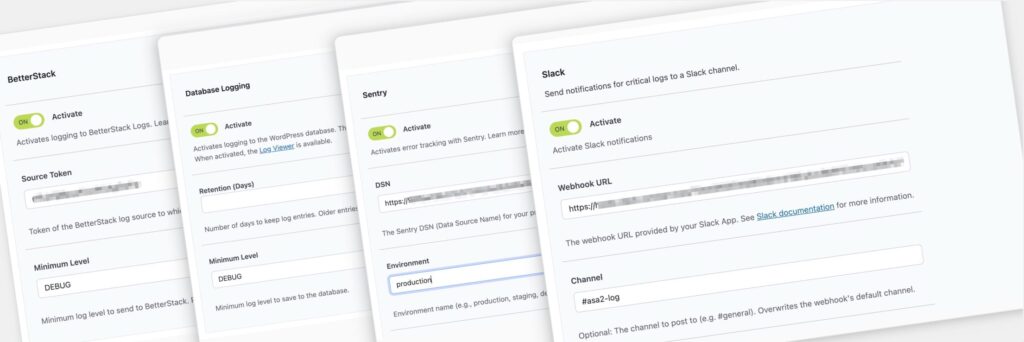
Each handler has its own activation toggle, minimum log level, and service-specific settings.
Log Viewer
When database logging is enabled, a new “Log Viewer” submenu appears under ASA2 in the WordPress admin. The log viewer displays all captured log entries with:
- Timestamp and log level
- Channel name (identifies which ASA2 feature generated the entry)
- Log message and structured context data
- Filtering by level and channel

Local Database – The Log Viewer displays all ASA2 log entries with filtering options.
BetterStack Integration
BetterStack (formerly Logtail) is a cloud-based log management service that provides search, filtering, and alerting across all your logs. The integration requires only your BetterStack source token.
Once configured, ASA2 sends log entries to BetterStack in real-time. You can search across all your ASA2 instances, create dashboards, and set up alerts for specific error patterns.
For more details about BetterStack visit betterstack.com
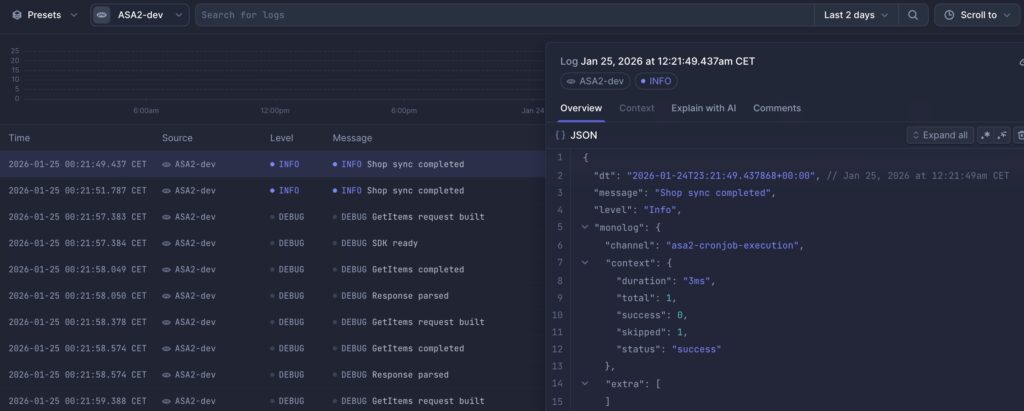
Sentry Integration
Sentry is an error tracking service that helps you monitor and fix issues in real-time. The ASA2 Advanced Log integration sends errors and exceptions to your Sentry project.
Configure the integration by entering your Sentry DSN in ASA2’s options. You can set the minimum log level to control which entries are sent — typically you want warnings and errors, not debug messages.
For more details about Sentry visit sentry.io
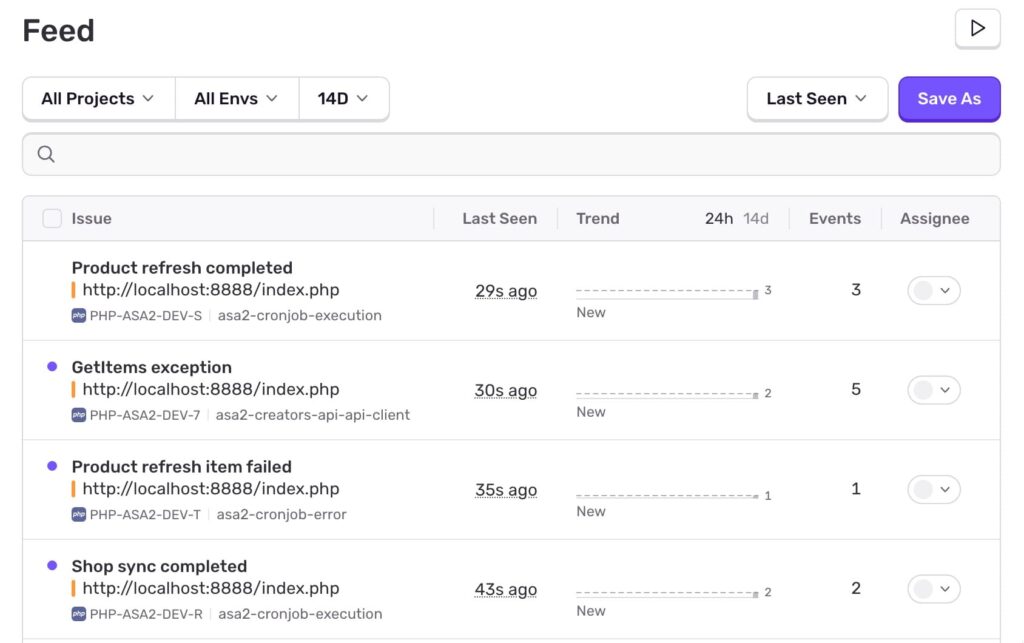
Sentry Integration
Slack Integration
The Slack handler posts log entries directly to a Slack channel via incoming webhooks. This is useful for immediate notification of errors or important events.
Set up an incoming webhook in your Slack workspace, then enter the webhook URL in ASA2’s options. Configure the minimum log level to avoid flooding your channel with debug messages.
For more details about Slack visit slack.com
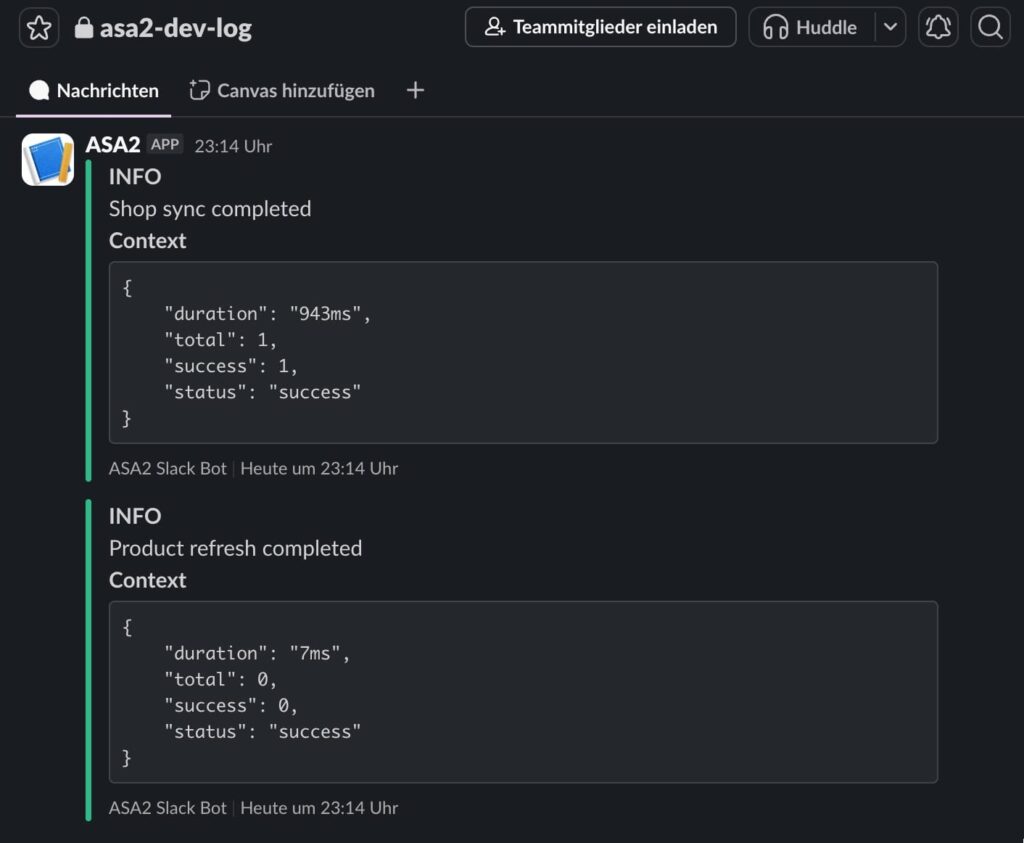
Slack Integration
Installation and Setup
- Get a free license via the ASA2 Advanced Log product page
- Download the installable Zip file from your account area
- Upload and activate the plugin in WordPress
- Enter your free license key on ASA2’s license page
- Configure Log handlers in ASA2 > Options > Advanced Logging
Technical Requirements
- PHP: 8.1 or higher
- WordPress: 5.2 or higher
- ASA2: 1.29.0 or higher (1.30.0 recommended)
- License: Free license key required (available from your account area)
Migrating from the Built-in Log Module
If you have been using ASA2’s built-in Log module, you can transition to ASA2 Advanced Log without losing functionality. The built-in Log module will display a notice recommending the switch once you have Advanced Log installed.
The migration is straightforward:
- Install and activate ASA2 Advanced Log
- Enter your license key
- Enable database logging in ASA2’s Advanced Logging options
- The new Log Viewer will capture all new entries
Existing entries from the old Log module remain in the database. You can view them in the old Log page until you decide to clear them.



0 Comments